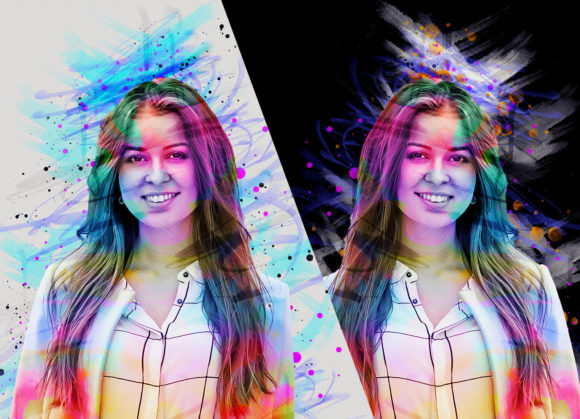
Transforming Photos with a Portrait Watercolor Photoshop Action
Digital artists and photographers often seek efficient ways to bridge the gap between traditional media aesthetics and modern digital workflows. The Portrait Watercolor Photoshop Action offers a streamlined solution for converting standard photographs into stylized watercolor portraits. Rather than spending hours manually painting over images or mastering complex layer blending techniques, this tool automates much of the process while retaining a degree of user control. For professionals, freelancers, and serious hobbyists, understanding how such actions function within Adobe Photoshop can significantly enhance productivity without sacrificing artistic integrity.
Understanding the Core Functionality
At its essence, this action is designed to apply a non-destructive watercolor effect to portrait photography. The term "non-destructive" is critical here. It means that the original image data remains intact, allowing users to revert changes, adjust opacity, or modify underlying layers at any point in the editing process. This flexibility is vital for professional workflows where client revisions are common.
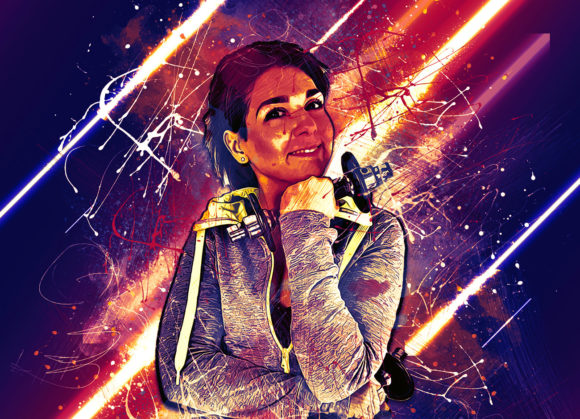
The action operates by utilizing a specific set of brushes, patterns, and adjustment layers predefined within the package. When executed, it interprets the tonal values of the source image and applies watercolor-like textures and color washes accordingly. The result is not merely a filter overlay but a structured transformation that mimics the fluidity and organic imperfections characteristic of hand-painted watercolors.
Workflow and Usability Considerations
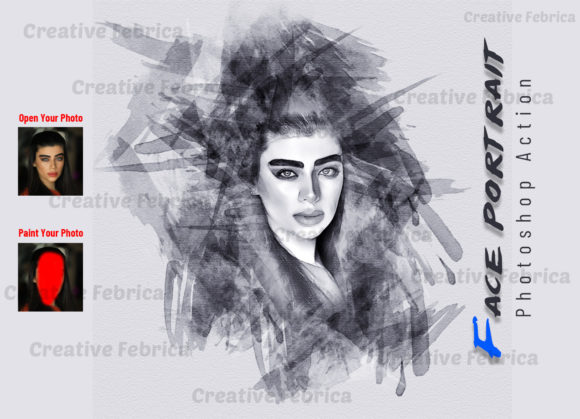
One of the most significant aspects of using any Photoshop action is the preparation required to achieve optimal results. The Portrait Watercolor Photoshop Action requires a specific, albeit simple, setup procedure. Users must first open their chosen photograph and create a new layer named “paint” in lowercase letters. This naming convention is crucial because the action is scripted to recognize this specific layer name to apply the effects correctly.
Once the layer is created, the user selects a brush and paints over the areas of the image they wish to transform. This step allows for selective application, meaning you can choose to keep certain elements sharp while softening others into a watercolor style. After painting, the user hides the visibility of the “paint” layer and runs the action. This method ensures that the effect is applied precisely where intended, offering a level of customization that fully automated filters often lack.
For best results, it is recommended to extract the subject from the background before applying the action. Using the crop tool to extend the canvas on three sides can provide additional space for the watercolor bleed effect, enhancing the artistic presentation. This preparatory step, while adding a few minutes to the workflow, significantly improves the final aesthetic quality.
Compatibility and Technical Requirements
Compatibility is a frequent concern when integrating third-party actions into an existing software ecosystem. This particular action supports a wide range of Adobe Photoshop versions, including CS4, CS5, CS5.5, CS6, and the Creative Cloud series from CC2014 through CC2020. The developer specifies that the English version of the software is required, which is a standard limitation for many scripted actions due to language-specific menu references.
The package includes several essential files: the ATN file (the action itself), brush files, pattern files, and a PDF help guide. The inclusion of ten different color options adds versatility, allowing users to experiment with various moods and palettes without needing to manually adjust hue and saturation sliders from scratch. These presets can serve as a starting point for further customization, catering to different artistic visions.
Image Quality and Resolution Standards
The effectiveness of any texture-based effect is heavily dependent on the resolution of the source image. Low-resolution photos may result in pixelated or muddy outputs when stretched or processed with detailed brushes. To ensure high-quality results, it is advisable to use images with dimensions around 2000x3000 pixels or 3000x2000 pixels at 72 DPI. These dimensions provide sufficient detail for the action to interpret edges and tones accurately, resulting in a crisp yet artistic finish.
Professionals should note that preview images are typically not included in the download package, so evaluating the potential output may require testing with sample images first. However, the consistent structure of the action suggests that results will be predictable once the user becomes familiar with the preparation steps.
Practical Applications for Creators
Who benefits most from incorporating a Portrait Watercolor Photoshop Action into their toolkit? The utility spans several creative disciplines:
- Photographers: Those offering portrait services can provide clients with unique artistic prints or digital avatars that stand out from standard retouching.
- Graphic Designers: Designers working on book covers, album art, or promotional materials can quickly generate stylized assets that convey emotion and creativity.
- Social Media Managers: Creating visually distinct content for platforms like Instagram or Pinterest often requires eye-catching imagery. Watercolor effects can soften harsh lighting or backgrounds, making images more approachable and aesthetically pleasing.
- Educators and Bloggers: Visual content enhances engagement. Using watercolor-style portraits for author bios, course materials, or article headers can add a personal, handmade touch to digital publications.
Evaluating Strengths and Limitations
The primary strength of this action lies in its efficiency and consistency. Once the initial learning curve regarding layer naming and preparation is overcome, the process becomes repeatable and fast. This is particularly valuable for freelancers managing tight deadlines. The non-destructive nature of the workflow also aligns with professional standards, ensuring that original assets are preserved.
However, there are limitations to consider. The reliance on manual painting for the initial mask means that the quality of the output is partially dependent on the user’s precision. Rough or inaccurate brushing may lead to unintended artifacts in the final image. Additionally, while the action provides ten color options, achieving a truly custom look may still require post-action adjustments in Photoshop, such as tweaking levels, curves, or color balance.
Another consideration is the software dependency. Users must have a compatible version of Photoshop installed. Those using alternative photo editing software like GIMP or Affinity Photo will not be able to utilize ATN files directly, limiting the tool’s audience to Adobe subscribers or perpetual license holders of supported versions.
Maximizing Value in Your Workflow
To get the most out of the Portrait Watercolor Photoshop Action, users should invest time in reading the included PDF help file. Understanding the nuances of the brush settings and pattern overlays can prevent common errors. Experimenting with different source images is also recommended; high-contrast portraits with clear facial features tend to yield better results than low-light or overly busy compositions.
Furthermore, combining this action with other Photoshop techniques can elevate the final product. For instance, adding a subtle paper texture overlay after running the action can enhance the realism of the watercolor effect. Adjusting the opacity of the generated layers allows for fine-tuning the intensity of the paint strokes, ensuring the portrait retains recognizable features while embracing the artistic style.
In conclusion, this action serves as a practical bridge between photography and digital painting. It does not replace the skill of a traditional artist but rather provides a powerful tool for digital creators to expand their stylistic repertoire. For those willing to follow the prescribed workflow and invest in proper image preparation, the Portrait Watercolor Photoshop Action offers a reliable, efficient, and creatively rewarding solution for transforming ordinary portraits into expressive works of art.